Friday, September 6, 2013

Plausible deniability of a hidden OS - Part 2

This is Part 2 of a 4 part post on using TrueCrypt to create a hidden operating system.

Links to each section:
Part 1 - (Un)boring intro with all the snazzy info
Part 2 - Setup your second partition -- you are here
Part 3 - Setup your first partition (sounds backwards, I know)
Part 4 - Other cool stuff -- COMING SOON


Part 2 - Setup your second partition

This section guides you through setting up the outer and inner volumes on Partition 2. Some of the images are a little too small to read but all you have to do is click on them to enlarge. One other note: It can sometimes get confusing on blog posts whether the paragraph of text applies to the image above it, or the image below it. Well, in this case the paragraphs of text always apply to the image below, if there is one.

Throughout this processs you may want to refer back to this quick rundown of the passwords you will need to assign and their roles:

-Password A: This is the password that you will use for the decoy operating system on Partition 1.
-Password B: This is the password that you will use for the hidden operating system on the inner volume of Partition 2
-Password C: This is the password that you will use for the outer volume on Partition 2 which will contain decoy files (not the decoy operating system)

Okay, let's get started.


~~ First download and install TrueCrypt for Windows here. Note: TrueCrypt can only create an encrypted operating system boot setup for Windows. Mac and Linux are supported for encrypted volumes, but not an encrypted operating system. However, there are other options available for other operating systems, so hit up Google.

~~ Next, you need to setup your partitioning to prepare for the encryption like this:

First partition = Your current Windows installation which will later be moved to the second partition and hidden (The way TrueCrypt does things here is that as part of the wizard the current installation of Windows will be moved to the inner volume of the second partition and hidden. It may be a good idea to start with a fresh install of Windows.)
Second partition = At least 2.1 times larger than the first partition

Here's how I set mine up (click the image to enlarge):

(click to enlarge)

NOTE: You may do better finding a partitioning scheme that doesn't potentially give away that you are using a hidden partition. If someone coerces you into giving them access to the decoy operating system and they see that the second partition is 2.1 times larger that the first partition, this could be a give away -- though it's still technically plausibly deniable. Try using a partitioning scheme that makes the second partition more like 2.5 or 3 times larger. As long as it is at least 2.1 times larger, you are okay.

While we're on the topic of partitioning, if at some point near the beginning of the encryption wizard you get the dialog shown below then click yes, reboot and start over. Paging files on a non-system partitions is a no-go in an encrypted setup.


Also, in order to get your partitioning the way you want it, you may need to shrink your system partition. If you have Windows 7, this is actually pretty easy to do through Disk Management. Check Google. Can't remember if you can shrink Vista, but who really cares, right? ;) If you get errors when shrinking your system partition, their are some tricks you can do to correct that including running a defrag, etc. That's outside the scope of this article, so please check Google. Oh, and shrinking XP without system damage is next to impossible, though not completely.

~~ Okay, so once you've got your partitioning in order, go ahead and open TrueCrypt and choose System>Create Hidden Operating System


~~ Read the happy little dialog about someone holding a gun to your head and then click OK:

~~ Below is actually one of the most useful informational dialogs we will see during the wizard and explains the anatomy pretty well! Read and click next of course...


(click to enlarge)
~~ So basically this next dialog is saying that your current installation of Windows is going to be moved to the hidden volume on Partition 2 and that you will have to reinstall Windows from scratch onto Partition 1. If you have Windows installation media, click yes.


~~ The next dialog is mainly telling you that whenever you are booted into your hidden operating system, you will not be able to write to any unencrypted filesystems that you may happen to have. This is a good thing because if you did mount an unencrypted file system, later forensics may be performed on the unencrypted file system to determine if it was mounted from a different operating system other than the decoy operating system. This could give away your hidden operating system.


~~ Here you need to choose Single-boot even though we are going to setup 2 separate operating systems. Setting up Multi-boot is actually a whole different thing and is outside the scope of this article:


~~ Make sure Windows is activated before you proceed. You don't want to be activating a hidden operating system with Microsoft's servers when it is supposed to be invisible. Don't blow your cover!:


~~ This dialog may seem a little confusing but take a look at the chart shown in Part 1 and it should make a lot more sense. On most systems, the wording "first partition behind the system partition" will simply translate to mean your second partition.


~~ Going with the defaults should be fine here. But if you want to geek out on different algorithms, go for it!


 ~~ Double check that the partitioning looks right:


 ~~ Here you will create Password C. If you can't remember which is Password C, check the big diagram in Part 1.


~~ Do you intend to store files larger than 4 GB on the outer volume of the second partition? (Probably not. Remember, this is the volume containing decoy flat files.)


~~ I would go with the defaults here:


~~ Just double checking! Are you sure you don't have anything stored on the second partition that you don't want deleted?!


~~ This may take a while...


~~ So if you are coerced into giving up Password A for the decoy operating system installed on Partition 1, an adversary may notice Partition 2 and plausibly deduct that it contains encrypted data. Then they may force you to give them Password C. Not to fear, however. Password C only gives them access to the outer volume of Partition 2 which will contain fake data in the form of flat files which are only a decoy. It's now time for you to go ahead and create some fake files and copy them over to the outer volume on Partition 2. This is kind of funny. Um. Okay. How about a file that has a fake plan of attack? Or maybe a list of bogus secret contacts? Of course, keep in mind that your adversaries have Google, too, and if they read this blog post then they may be looking for these, lol. So be creative. Go on...Create some fake files already!

Oh, you may wondering, "If they see a second partition and coerce me into revealing the password to the outer volume, can't they accuse me of having an inner volume, too? Won't they know I have a hidden operating system?" Good thinking. They can certainly try to guess that this is the case but you will be able to plausibly deny it. The decoy OS can't be plausibly denied because of the password prompt at boot (unless you removed it) and because most people have an operating system on their computer, of course. The outer volume on the second partition can't quite be plausibly denied because the it doesn't make a lot of sense to have a second partition just sitting there with random ones and zeros. The inner volume on the second partition can be plausibly denied because the outer volume on the second partition is a plausible explanation for the random ones and zeros on the second partition. Getting confused? Read this paragraph 3 times slowly. ;)

The way this all works is that the inner volume on Partition 2 uses the free space of the outer volume on Partition 2. Genius, huh? However, this means that if you write too many files onto the outer file you could corrupt the inner volume. Once you get everything setup, TrueCrypt has a handy checkbox for protecting the inner volume when mounting. For now though, you need to read the dialog carefully and take note of the space limits. (This will be covered more in Part 4.) Then click Open Outer Volume and create/copy your decoy flat files. Leave the TrueCrypt wizard open while you do this. Return to the wizard when you are done and click next.

NOTE: What about a data forensics expert noticing that the free space on the outer volume of the second partition contains random ones and zeros instead of say, being zeroed out? The hidden operating system is still plausibly deniable because the claim could be made by the victim that at one point they shredded data in that location with a software tool that overwrites with random bits, per common practice. Thus, random bits were left on that volume.


~~ We've completed the outer volume on the second partition and placed decoy files in it. Now it's time to create the inner volume on the second partition and copy the operating system from Partition 1 to the inner volume of Partition 2. Click Next here:
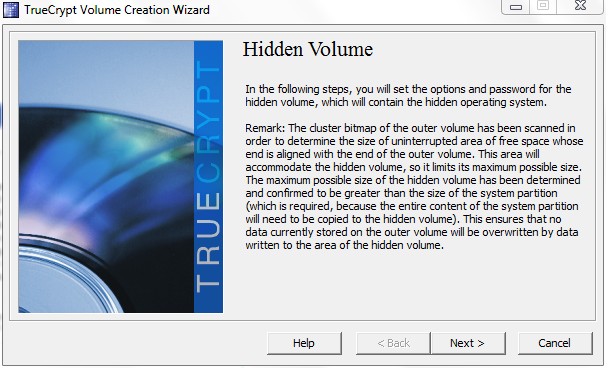


~Make sure you write down what algorithm you use in the next steps! (Wasn't important for previous steps.)  The decoy operating system on Partition 1 must use the same encryption algorithm as the hidden operating system on the inner volume of Partition 2. This is because there is a different TrueCrypt bootloader for each encryption algorithm.


~Going with the default encryption algorithms should be fine, just remember which one you used!!:


~Remember, this whole setup is pointless if you don't use a Fort Knox kinda password. For all three passwords, consider using a passphrase that is at least 20 characters long and contains uppercase, lowercase, numerals and symbols. Don't take hours and hours setting up a hidden operating system and then use the name of your dog in h4x0R. Please. Also, don't use similar passwords for Password A, Password B and Password C. Otherwise, if an adversary suspects a hidden operating system and you have already given them Password A and Password C, they may be able to derive Password B.


~Oh, and please don't write this on a post it note and put it on your wall or under your keyboard. Sigh. If you are going to use spy-level technology, you are going to have to be a good spy. This means being a good memorizer. :) ...Enter Password B:


 ~Time for some mouse fun! TrueCrypt uses your mouse movements within this dialog to increase the strength of the encryption. Draw some stick figures. Pretend you are a post modern painter gone wild with their brush. How long? Oh, maybe 2 minutes? Up to you...


~Okay, the encrypted inner volume on Partition 2 has been created:


~Now you need to copy the operating system from Partition 1 to the inner volume of Partition 2. This is going to take place after a reboot from a TrueCrypt live environment (not Windows). I don't recommend interrupting it. Click Start.


~Click Yes.


~Enter Password B:


 ~Go do a little yard work or something:


~Cool! It's done...Enter Password B:


 ~So once you've booted into your hidden operating system, pull up Disk Management and be freaked out. It looks like you are booted to Partition 1! You're not, don't worry. This is just the behavior of a TrueCrypt hidden operating system. This next dialogue explains further:


~This next huge dialog is basically reminding you that you can only write to encrypted filesystems when booted to the hidden operating system. Writing to unencrypted filesystems could give away the presence of the hidden operating system by leaving traces in those filesystems. Down at the bottom, it tells you how to securely transfer files from the decoy operating system to the hidden operating system.


After you click OK on the window above, the next dialog guides you through tasks for Partition 1. Hang tight and continue onto Part 3 for that by clicking here.

Click here to go to Part 3 - Setup your first partition

Links to each section:
Part 1 - (Un)boring intro with all the snazzy info
Part 2 - Setup your second partition -- you are here
Part 3 - Setup your first partition (sounds backwards, I know)
Part 4 - Other cool stuff -- COMING SOON

Thursday, September 5, 2013

Plausible deniability of a hidden OS - Part 1

So just in case you are like a spy or just extremely paranoid, I've got a post for you on how to create a system with TrueCrypt (free) that dual boots between an encrypted decoy Windows operating system and an encrypted hidden Windows operating system. Such a hidden system in theory cannot even be proven to exist by the best computer forensics investigation techniques in use at the time of this post. By employing this particular type of encryption, one can potentially achieve plausible deniability in regards to the presence of a hidden operating system.


Now if you want to find a quick tutorial online on how to do this, Google will serve you well. There are quite a few. But if you want to fully understand the anatomy and architecture of this technology and a full explanation of the many confusing dialog boxes you will encounter during your adventure, this is place for you. I will strive to explain in detail while still keeping things as straightforward and simple as possible.

This will be in four parts:
Part 1 - (Un)boring intro with all the snazzy info -- you're reading this now!
Part 2 - Setup your second partition
Part 3 - Setup your first partition (sounds backwards, I know)
Part 4 - Other cool stuff -- COMING SOON

So why use a hidden operating system or why even use encryption at all? Well, let's look at your choices...

1. No encryption at all: Not good. Anybody can boot your computer into a Linux live CD like Knoppix or whatever and view all your flat files to their heart's content. If your laptop is stolen or lost, you are toast.

2. Encrypt a volume: You can encrypt a volume on your computer with something like TrueCrypt. This amounts to a file being created which is actually an encrypted container for your files. This will protect only the files you put into it. The container is mounted by simply opening the TrueCrypt application, mounting the container file and providing the password. Without the password, no one can see your stuff.

3. Encrypt a hidden volume: When setting up #2 (above), you can additionally set up an encrypted hidden volume inside of the of the normal encrypted outer volume. Although someone could forensically deduct that the outer volume exists and potentially force you to reveal the password, they would not be able to tell that there was a hidden volume inside of it. Even if they were familiar with this technology and suspected that there was a hidden volume, in theory they would not be able to prove forensically that it existed and you could plausibly deny it's existence. When mounting the volume, you can use one of 2 passwords: Using one mounts the normal outer volume; Using the other mounts the hidden volume.


A custom fake boot error which is really a TrueCrypt password prompt

4. Encrypt the operating system partition:
This involves encrypting your entire Windows installation so that a password is required in order to even boot. If someone removes your hard drive and slaves it into their computer or boots your computer to a live CD, they will still not be able to recover your data because it is encrypted. When you boot your computer, a boot loader will come up and ask for the password before you can boot into Windows. Also, the bootloader password prompt can be hidden or a fake error can be displayed in it's place if you really wanna go paranoid. For added security/paranoia, some even prefer to copy the TrueCrypt bootloader to external media and then securely wipe it from the hard drive so that even the best analyst could potentially not prove that there was any encryption in place at all, even if they suspected it. In this case, the external media would contain the bootloader but the hard drive itself would contain no definitive evidence of encryption. A forensic analysis in that situation would simply show random bits on the disk. That last part's a little outside of the scope of this post, however, except to say that the presence of random bits on a disk are not evidence enough to definitely prove the existence of encrypted data. Many virtual data shredding applications write random bits when wiping disks, for instance.

(click to enlarge)

5. Encrypt a hidden operating system: You can have your computer dual boot to both a decoy operating system and a hidden operating system. An attacker theoretically would not be able to tell that a hidden operating system can even be booted to because it's totally based on what password you type during boot up. The password prompt in the bootloader knows to send you to the right operating system depending on what password is inputed. If you were forced to provide access to the computer by revealing the password, you could simply provide the password to the decoy operating system. The attacker could then boot into the decoy operating system and if they were savvy, they could see that there was an apparently empty 2nd partition on your hard drive. If skilled in forensics, they could see that the 2nd partition was populated with what appears to be random data. Although theoretically no technology currently exists for them to prove the presence of a hidden operating system (or that the secondary partition is even encrypted at all), the presence of this mysterious partition may cause them to question as to whether there is a hidden operating system. However, the architecture of the secondary partition is thus that there is an outer volume and an inner volume, similar to #3 above. The victim would thus have an additional decoy mechanism by placing fake sensitive data on the outer volume of the second partition. If questioned about the presence of random data on the second partition, the victim could simply claim that they wiped the whole drive to DoD specifications with 3 passes of random data using a disk shredding software tool. Still, if they were coerced (think gun to your head situation) into admitting the presence of encrypted data on the secondary partition, they could simply provide the password to the outer volume on the secondary partition and plausibly deny any suggestions that a hidden volume exists on the secondary partition. (Yes, there are a total of 3 passwords in this scenario!: One to a decoy operating system on the first partition, one to an outer volume on second partition and one to an additional hidden volume on the second partition.) The attacker still could suspect that there is a hidden operating system and ask you why you put your data into a secondary partition. You could say that this partition was so that you could keep your data files separate from your system files, as many admins do. Or you could say that you wanted to have a separate level of security for your top secret data. They theoretically would not be able to prove that the hidden operating system exists. You may be wondering what type of situations this could possibly be useful for. Well, among other scenarios, think of an American spy detained by an unfriendly government who finds themselves a defendant in an espionage case. In this situation, the defendant could potentially be protected by the plausible deniability afforded in this setup.


System bootup in a hidden OS scenario and how all 3 volumes are accessed


So to recap, even in the most secure scenario, they could boot up your computer and suspect that you have encrypted data but if they forced you to grant access you could just provide access to the decoy operating system. At that point, if they also forced you to grant access to the suspected secondary encrypted partition, you could do so without granting access to the hidden operating system. If they suspected the presence of a hidden operating system, in theory you could plausibly deny its existence much easier than you could deny the existence of the decoy operating system on the first partition and the outer volume of the secondary partition. Even in the case of an official government investigation or court case, there would theoretically be no way to prove beyond a shadow of a doubt that a hidden operating system is on a given computer. An investigation involving the best available forensics software publicly known in our time could not prove it. (The NSA or others may have technology that is not known to the public, etc. but in multiple cases the government has not been able to successfully decrypt TrueCrypt volumes.) The whole plausible deniability concept here is based on the idea they can prove the likely existence of the outer volume on the second parition but they can't prove the existence of the inner volume on the second partition. What benefit is there to solution #5 above solution #3 when they both offer plausible deniability of hidden data? Among other things, #5 offers that even installed applications and all locally stored logs and traces of activity would be hidden in the event of a situation in which the victim is being coerced to provide access or is in a hostile situation of that nature. (Again, think gun to your head.)


A few disclaimers:

-I'm not suggesting that you hide things from the government or law enforcement, etc. There are many situations where this technology could be used for good or for evil. Please don't use it for evil. Just good. (Duh.) Also, when I use the term government, keep in mind that there are good people who may need hide data from evil foreign governments so don't jump to the conclusion that I am trying to help bad people.

-With solution #5, you need to boot into the decoy operating system regularly and use it or the logs will show it hasn't been used in a while, which could give away the fact that you've been using a hidden operating system.

-The computer may be connected to a network (including the Internet) only when the decoy operating system is running. When the hidden operating system is running, the computer should not be connected to any network, including the Internet. Adhering to this is imperative, as the hidden operating system could be logged on a network, therefore giving away its existence.

-It's very hard to maintain a hidden operating system. It works in theory but is a very difficult setup to maintain, so watch yourself carefully.

-None of this blog post (or anything on this blog, for that matter) are meant as legal advice. I am not a legal professional, and this post is not intended to answer your legal questions. (Duh.)

In my next posts (coming soon), I will be providing instructions on how to setup a hidden operating system. I'm only going to give you the instructions for #5 (above), as it is the most challenging and least documented. But the good news is that it's not that hard, due to the amazing job that the developers have done with TrueCrypt!

Click here to go to Part 2 - Setup your second partition

Links to each section:
Part 1 - (Un)boring intro with all the snazzy info -- you're reading this now!
Part 2 - Setup your second partition
Part 3 - Setup your first partition (sounds backwards, I know)
Part 4 - Other cool stuff -- COMING SOON

Tuesday, September 3, 2013

BancorpSouth's Website is Insecure!


Wow.... I discovered this past weekend that BancorpSouth's website has an expired certificate which expired 8/31/13! (Yes, my system time is set correctly.) At the time I am writing this post (1:16 PM on 9/3/13), all you have to do is go to bancorpsouthonline.com to see the certificate error. I called them immediately but found that the only line I could call to talk to a live person on the holiday weekend was the credit card fraud line. So I told them of my concern but they did not care. I asked the woman on the phone to transfer me to her supervisor and she made me hold for a long time before coming back and saying that no supervisor was available. She took my number for them to call me back but they never did.

This morning, I checked and it still has an expired certificate. This is inexcusable for a bank! I also checked their Facebook page and found that while they admitted to being aware of the issue, they were still advising users to login as normal (which requires bypassing the certificate error!) As I'm sure you know, this is horrible. Users should never bypass a certificate warning, but especially not for a bank! This means that users are sending their password across the internet to a non-verified website that could be being redirected to a hacker, for all they know!


I also used an online tool that allows you to verify a website's certificate. It showed the certificate as expired, as well:


Since I have already attempted to contact BancorpSouth and they were dismissive (told me to call back later and talk to customer service after the holiday, etc.), I have been forced to contact the media. Hopefully, the end result of that will be that the average person will be safer by this being exposed. BancorpSouth made two mistakes: 1. Letting the certificate expire was inexcusable for a bank. 2. BancorpSouth should not have advised their customers to go ahead and use the site while the certificate is expired.

By the way, I want to also mention that their iPad app works just fine still! That is a bad thing!! That means that the app itself may not be even checking the certificate at all! BancorpSouth = FAIL

UPDATE 1 of 3: BancorpSouth has removed my post and some other negative posts about this issue from their Facebook timeline. Good thing I took screen captures and posted them here before they deleted them! They also blocked me from being able to post to their timeline. So this is how much they care about online privacy? First they fail their customers by making them vulnerable to being hacked, then they lie to them and tell them they are safe...and then lastly they block anyone from seeing the truth. Sorry to inform you BancorpSouth customers but BancorpSouth doesn't care about keeping your money secure. Time for you to find a new bank.

Here's what the above thread looked like after they deleted the truth from their Timeline and only preserved the post that made them look good:


Here's another comment of them admitting the problem but claiming that it is still safe to use their website:


UPDATE 2 of 3: BancorpSouth has finally fixed their website. It was insecure for THREE DAYS.

UPDATE 3 of 3: It occurred to me just now that when BancorpSouth told their users that the site was still safe they were unfortunately conditioning their customers to ignore security errors. This is very bad practice. Now they have conditioned their users to disregard certificate errors. So what if a user next month is the victim of a hack that redirects them to a malicous site but shows a certificate error? The user will ignore it because they have been conditioned to and potentially get their credentials stolen! Way to go BancorpSouth! :(

Wednesday, August 28, 2013

Decieve a Webfilter With a URL Shortner


This is not foolproof but I have had it get me out of a jam... Sometimes I will have a web filter that is blocking me from downloading something like an admin/security tool and I either don't have access to the web filter appliance or am tired of trying to make the web filter appliance behave. (They can be really finicky, sometimes!!) One trick I have found that has helped me out when I am in a big hurry is to download a file is to use a URL shortner. Strangely enough, I've seen multiple brands of web filter appliances that weren't smart enough to deal with this. What I will do is simply copy the actual download URL to the file and put it in something like tinyurl.com. Then I use the new URL and quite often, the web filter lets it get by! Joy!

Monday, August 26, 2013

Using Mountain Lion's built in TFTP server


 It's finally clear to me why Macs are better. Because there's a TFTP server built in, of course! This feature is obviously built in for all those more-creative-than-thou types who disdain Windows computers because there isn't a glowing piece of fruit embedded into the chassis. Because those kind of people need a TFTP server, right?

So how do you use Mac OS X Mountain Lion's built in TFTP server? Well, like all things Mac, it's as user friendly as all get out...

1. Turn off the Mac firewall: System Preferences>Security and Privacy>Firewall

2. Copy the file you want to provide to TFTP clients to the default TFTP directory /private/tftpboot/ by using a command like: sudo cp /Users/jdoe/Documents/file.tar /private/tftpboot/file.tar

3. Disable any antivirus/firewall software you may be running (doubtful)

4. Grant read/write permissions on the file to everyone with this command:
sudo chmod 777 /private/tftpboot/[filename]

5. Start the TFTP daemon with these commands:
sudo launchctl load -F /System/Library/LaunchDaemons/tftp.plist
sudo launchctl start com.apple.tftpd


See? I told you Apple makes everything easy and straightforward on a Mac! So you trendy types be sure to get you a post-it-note with these commands placed on your monitor for easy reference!

Wednesday, July 17, 2013

Reset Local Windows Password with chntpw


I usually prefer to reset local Windows admin passwords with Offline NT Password & Registry Editor. But what if all you have handy is a live Knoppix? Here's how to do it with Knoppix using chntpw. It's far more simple than I had thought, so give it a try.

  1. Boot into Knoppix and pull up a root terminal
  2. apt-get install chntpw (requires a network connection)
  3. Mount the Windows system drive before continuing to step 4
  4. cd [mount_location]/WINDOWS/system32/config 
  5. chntpw -l SAM 
  6. chntpw -u Administrator SAM 
  7. Enter 1 to blank password
  8. Enter y to write changes 
  9. chntpw -u Administrator SAM 
  10. Enter 4 to unlock and enable the account
  11. Enter y to write changes 
  12. chntpw -l SAM

Keep in mind that as the program warns, it's a bit "hacky". You may have to try it multiple times for it to work. Also, I found interactive mode to be too buggy to even use. I would just use the commands above. You should also know that is always best to clear the password instead of changing it. The latter has a much lower success rate. If you do clear it, you may want to unplug the network cable until you are able to log into Windows and change it. It may sound paranoid, but you don't want to get hacked because you had a blank password for 60 seconds. Especially on a web server that is on the world wide web.

I hope this helps you if you are in a jam sometime and have no choice but to do it the old fashioned way with chntpw!

P.S. I only had a chance to test this on XP using Knoppix 7.0.5, so please leave a comment on your experience with other versions!

Tuesday, January 29, 2013

Reset Mac OS X Lion Password

If you need to reset the password on Mac OS X Lion but you don't have any secondary admin accounts, it's actually pretty easy. Even if you don't have an install disc.


Different versions of OS X require different stuff but this post specifically applies to Lion. (That's the only OS I tested it on, at least.) So here are the instructions:

1. Power up the Mac
2. As soon as you see the gray screen, hold down Command-S
3. Let go once you see text on a black background
4. Once the text stops scrolling, hit enter
5. Enter this command: mount -uw /
6. Enter this command: rm /var/db/.AppleSetupDone
7. Enter this command: reboot
8. Go through the setup wizard and choose defaults. Do not import any data, etc. Name your user something like temp
9. Login as the new user
10. Navigate to System Preferences>Users & Groups, click the padlock icon and authenticate
11. Select the user who you want to reset the password for and click Reset Password
12. After resetting the password, logout
13. Login as the user that you reset the password for
14. When you get the keychain dialog, you will likely just want to just choose new, but it's up to you
15. Delete the temp user you created

The end!

If you are not sure what version of OS X you have, you may want to type the following command right after step 4: uname -a The information displayed can be checked against here or by googling to determine the operating system.

Although it is always a good idea to have backups and I can't be held liable for data loss, etc., the method above is one that should not harm any data at all. So don't freak out. This method should not remove data from the user account you are trying to get into.


Enjoy!